How to Create Minecraft Server Backups Through Control Panel
Why Are Backups So Important?
A backup (data copy) is essential for any Minecraft server that aims to become an interesting project.
Imagine this situation: you created a server, installed many different plugins and interesting mods, spent days on configuration, and also built survival houses. And then… a sudden error, some failure, or someone deliberately harmed your project — and everything is lost.
How to Protect Yourself?
That’s what backups are for! With their help, you can easily restore all data and continue enjoying the game.
Creating a Backup Through Control Panel
Our website panel.qwer-host.xyz provides the ability to create backups directly in the control panel.
Step-by-Step Instructions
1. Open the Backups Section
Go to the “Backups” section in your server control panel.
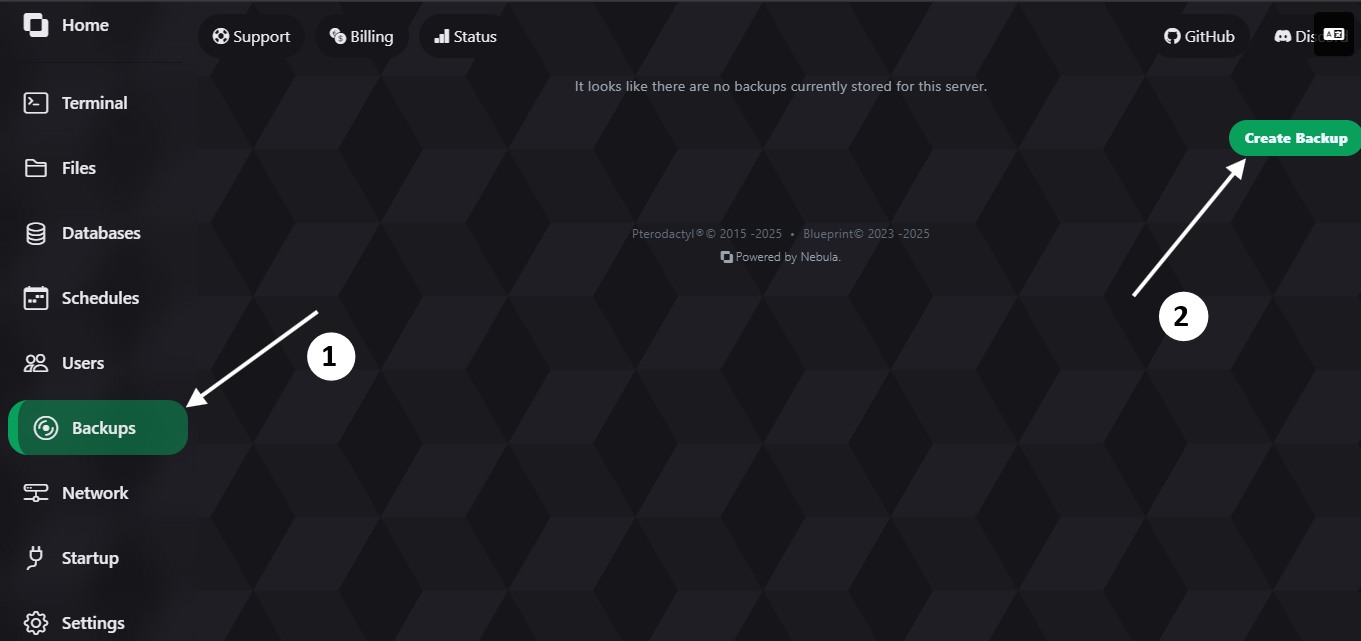
2. Create a Backup
Click the “Create Backup” button.
3. Configure Backup Settings
Choose a name for the backup and click “Start Backup”.
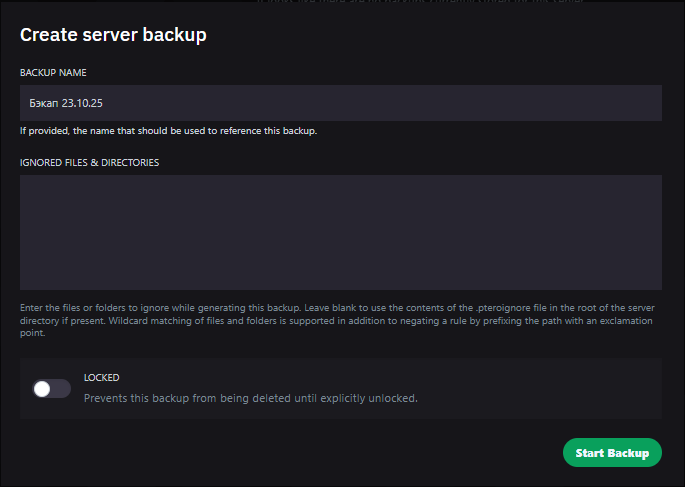
4. Protection Against Accidental Deletion (Optional)
You can protect the backup from accidental deletion using the toggle at the bottom of the backup creation form.
Backup Best Practices
- Regularity — create backups regularly (daily or weekly depending on server activity)
- Planning — use automatic restart scheduling to create backups during off-hours
- Naming — give backups clear names with dates and descriptions (e.g., “backup-2025-10-23-before-update”)
- Verification — periodically check that backups are being created correctly
- Storage — don’t delete old backups immediately — keep several recent copies just in case
Restoring From a Backup
If you need to restore your server from a backup:
- Go to the “Backups” section
- Find the needed backup in the list
- Click the three dots to the right of the backup
- Select “Restore”
- Confirm the action
Regular backups are a guarantee of your project’s safety. Don’t neglect this feature!