Linking Web Server to Domain
How to Link a Dynamic Map/Other Web Server to a Domain?
If you have a web server (for example, a Minecraft dynamic map via Dynmap, BlueMap, or a server Panel), you can easily link it to your domain through Cloudflare. This takes literally a couple of clicks!
What can be linked to a domain:
- 🗺️ Dynamic maps (Dynmap, BlueMap, Pl3xMap)
- 🎮 Server control panels (Pterodactyl, Multicraft)
- 🌐 Websites on your server
- 📊 Monitoring and statistics
- 🔧 Any other web service on your port
How to Transfer Domain to Cloudflare?
If you don’t have a domain on Cloudflare yet, you need to transfer it first:
Quick Guide:
- Register on Cloudflare (free)
- Add your domain — click “Add Site” and enter your domain
- Choose a plan — select the free plan (Free)
- Cloudflare will show your current DNS records — review and confirm
- Change NS servers at your registrar — Cloudflare will show 2 NS server addresses
- Log in to your registrar’s website (where you bought the domain) and replace NS servers with those provided by Cloudflare
- Wait — DNS servers will update within 24-48 hours (usually faster)
Detailed domain transfer instructions:
Step-by-Step Web Server Linking Guide
Step 1: Create an A Record with Proxying
- Open Cloudflare dashboard
- Select your domain
- Go to DNS → Records
- Click Add record
Fill in the fields:
| Field | Value | Description |
|---|---|---|
| Type | A |
Record type |
| Name | map |
Subdomain (you can choose any: map, dynmap, web, panel, etc.) |
| IPv4 address | 123.45.67.89 |
Your server’s IP address |
| Proxy status | 🟠 ON | Orange cloud must be enabled! |
| TTL | Auto |
Leave unchanged |
Important difference from Minecraft server setup:
For a web server, Proxy Status (orange cloud) must be ENABLED (orange)!
This allows using Cloudflare features, including port proxying.
Configuration example:

Click Save.
Step 2: Configure Origin Rules for Port Forwarding
Now you need to set up a rule that will redirect requests to the required port of your web server.
- In Cloudflare dashboard, go to Rules → Overview
- Click Create rule
- Select Origin rule
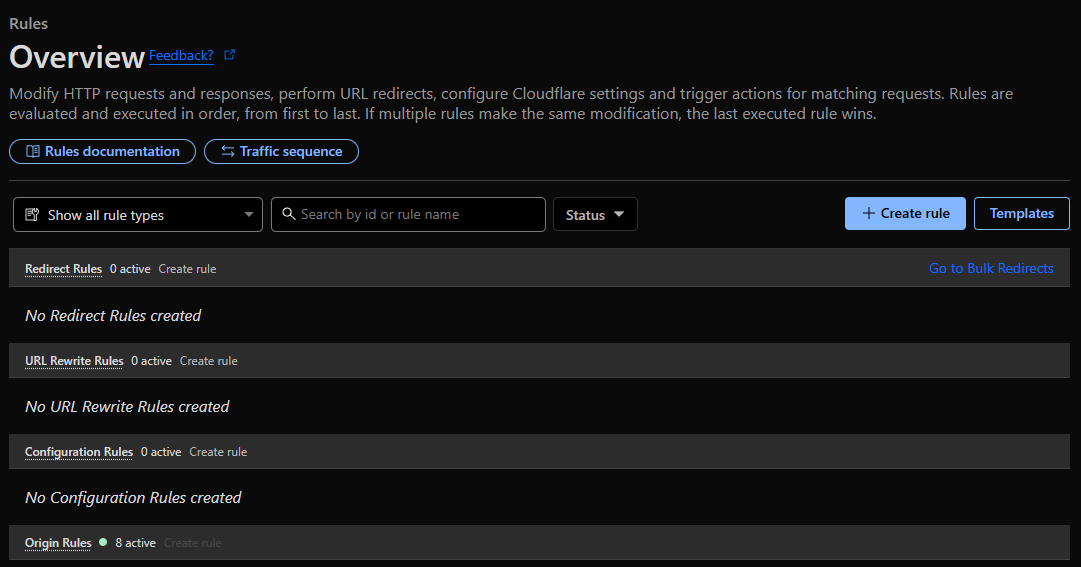
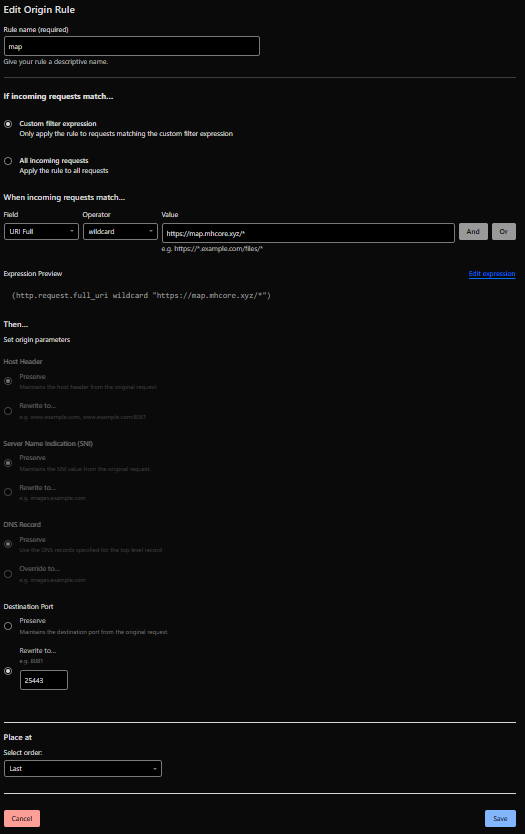
Fill in the rule form:
Rule name:
Dynmap Port Forwarding(or any other name that makes sense to you)
When incoming requests match… (Condition):
Select:
- Field:
URL Full - Operator:
wildcard - Value:
https://map.mhcore.xyz/*(your subdomain with A record)
Then… (Action):
In the Destination Port section, select:
- Rewrite to:
25443(specify your web server’s port)
Fill-in example:
Step 3: Save and Deploy the Rule
- Review all settings
- Click Deploy
- Cloudflare will apply the rule automatically
Done! Now your web server is accessible at:
https://map.mhcore.xyzNote: Cloudflare will automatically add HTTPS (SSL certificate), even if your server uses only HTTP!
Step 4: Verify Functionality
- Open a browser
- Navigate to your subdomain address (e.g.,
https://map.mhcore.xyz) - You should see your dynamic map or web interface!
Please note:
- First connection may take a few seconds
- SSL certificate is created automatically and for free
- Cloudflare will cache static files to speed up loading
Multiple Web Services on One Domain
You can create multiple subdomains for different services:
Structure Example:
| Subdomain | Service | Port | Origin Rule |
|---|---|---|---|
map.mhcore.xyz |
Dynmap | 8123 | URL Full wildcard map.mhcore.xyz → Port 8123 |
bluemap.mhcore.xyz |
BlueMap | 8100 | URL Full wildcard bluemap.mhcore.xyz → Port 8100 |
panel.mhcore.xyz |
Pterodactyl | 8080 | URL Full wildcard panel.mhcore.xyz → Port 8080 |
stats.mhcore.xyz |
Statistics | 3000 | URL Full wildcard stats.mhcore.xyz → Port 3000 |
For each service:
- Create a separate A record with proxying enabled
- Create a separate Origin Rule with the corresponding port
Benefits of Using Cloudflare
✅ Free SSL — automatic HTTPS for your site
✅ DDoS protection — protection against attacks
✅ Caching — faster loading of static files
✅ CDN — your site will load faster worldwide
✅ IP hiding — your server’s real IP address will be hidden
✅ Analytics — free visitor statistics
Common Issues and Solutions
❌ Error 521 “Web server is down”
Cause: Cloudflare cannot connect to your server
Solution:
- Check that the web server is running
- Ensure the port is open in the firewall
- Verify the IP address in the A record is correct
- Make sure the port in Origin Rule is specified correctly
❌ Error 522 “Connection timed out”
Cause: Cloudflare cannot reach the server within the allotted time
Solution:
- Check server accessibility from outside (via online port scanners)
- Make sure the port is not blocked by the provider
- Check firewall settings on the server
❌ Infinite loading or “Too many redirects”
Cause: Incorrect SSL/TLS settings
Solution:
- Go to SSL/TLS → Overview
- Set mode to Flexible (if your server doesn’t use HTTPS)
- Or set to Full (if your server uses a self-signed certificate)
❌ Page opens but styles/scripts don’t load
Cause: Mixed Content — HTTPS page loading HTTP resources
Solution:
- Go to SSL/TLS → Edge Certificates
- Enable Always Use HTTPS
- Enable Automatic HTTPS Rewrites
SSL/TLS Configuration
For correct web server operation through Cloudflare, configure SSL:
- Go to SSL/TLS → Overview
- Choose the appropriate mode:
| Mode | When to Use |
|---|---|
| Flexible | Your server uses only HTTP (no SSL) |
| Full | Your server uses HTTPS with self-signed certificate |
| Full (strict) | Your server uses HTTPS with trusted certificate |
Usage Examples
Example 1: Dynmap for Minecraft Server
Domain: map.mhcore.xyz
IP: 123.45.67.89
Dynmap Port: 8123

A Record:
- Name: map
- IP: 123.45.67.89
- Proxy: ON

Origin Rule:
- URL Full wildcard https://map.mhcore.xyz/*
- Rewrite to port 8123
Result: https://map.mhcore.xyz will show your Dynmap!
Example 2: Pterodactyl Control Panel
Domain: panel.mhcore.xyz
IP: 123.45.67.89
Panel Port: 8080

A Record:
- Name: panel
- IP: 123.45.67.89
- Proxy: ON

Origin Rule:
- URL Full wildcard https://panel.mhcore.xyz/*
- Rewrite to port 8080
Result: https://panel.mhcore.xyz will open the control panel!
Useful Links
- Official Cloudflare Rules Documentation
- Cloudflare SSL/TLS Configuration
- Troubleshooting Cloudflare Errors
Need help?
If you encounter difficulties setting up a web server through Cloudflare, contact your hosting support or Cloudflare community forums.