Linking a Domain to Minecraft Server
How to Use Your Domain Instead of an IP Address?
Linking a domain to your server is necessary to make the connection process simpler and faster. Typically, an IP address is used for connection, which can be long and difficult to remember (123.45.67.89:1234).
If you link a domain, for example, play.mhcore.xyz, it will be easier for players to remember, which can help attract an audience to your server.
Why do you need this?
- Easy to remember:
play.mhcore.xyzinstead of123.45.67.89:25565 - Professional appearance for your server
- Ability to change hosting without changing the address for players
Preparation
Important to remember!
To begin, you need to:
- Purchase a domain (for example, on Namecheap, GoDaddy, REG.RU, etc.)
- Transfer it to Cloudflare (free, but mandatory for this guide)
If you already have a domain in Cloudflare — proceed to the next step!
Step-by-Step Instructions
Step 1: Open Cloudflare Dashboard
- Go to Cloudflare
- Log in to your account
- You will see a list of all your domains
Step 2: Select Your Domain
From the list of domains, select the one you want to use for your Minecraft server.
Step 3: Navigate to the “DNS” Tab
In the top menu, find and click on DNS → Records.
Method 1: Setup via A Record (Recommended)
Step 4: Create a New A Record
Click the Add record button and fill in the fields as follows:
| Field | Value | Description |
|---|---|---|
| Type | A |
Record type |
| Name | play |
Any name (subdomain) |
| IPv4 address | 123.45.67.89 |
Your server’s IP address WITHOUT PORT |
| Proxy status | 🔴 OFF | Orange cloud must be disabled (gray) |
| TTL | Auto |
Leave unchanged |
Critically important:
- Proxy Status (orange cloud) MUST be disabled!
- In IPv4, specify the IP WITHOUT PORT (e.g.,
123.45.67.89, not123.45.67.89:25565)
Example A Record Configuration:

Save the record by clicking Save.
Step 5: Create a New SRV Record
Now create an SRV record to specify the server port. Click Add record and fill in:
| Field | Value | Description |
|---|---|---|
| Type | SRV |
Record type |
| Name | _minecraft._tcp.play |
Format: _minecraft._tcp.(your_subdomain) |
| Service | _minecraft |
Auto-filled |
| Protocol | TCP |
Auto-filled |
| TTL | Auto |
Leave unchanged |
| Priority | 5 |
Record priority |
| Weight | 5 |
Record weight |
| Port | 25565 |
Your Minecraft server port |
| Target | play.mhcore.xyz |
Format: (a-record_name).(your_domain) |
SRV Record Fields Explained:
- Name:
_minecraft._tcp.playmeans the server will be accessible atplay.mhcore.xyz - Port: Specify your Minecraft server port (usually
25565or another) - Target: Should point to the A record you created (e.g.,
play.mhcore.xyz)
Example SRV Record Configuration:
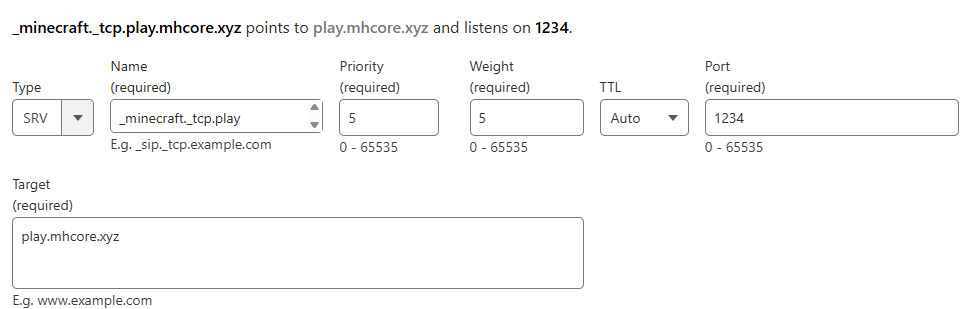
Save the record by clicking Save.
Method 2: Setup Without A Record (Alternative)
If your server is hosted on MHCore, you can use the node address directly:
Step 4 (alternative): Create Only SRV Record
| Field | Value |
|---|---|
| Type | SRV |
| Name | _minecraft._tcp.play |
| Priority | 5 |
| Weight | 5 |
| Port | 25565 (your server port) |
| Target | node1.mhcore.xyz (your node name) |
For MHCore Users:
In Target, specify your node address in the format: (node_name).mhcore.xyz
Example: node1.mhcore.xyz, node2.mhcore.xyz, etc.
Result
According to the example above, your server will be accessible at:
play.mhcore.xyzPlayers will be able to connect to the server by simply entering this address in Minecraft, without specifying the port!
Done! 🎉
Now players can connect to your server using a beautiful and memorable address!
Time for Changes to Apply
Please note:
DNS records may not apply instantly. Typically, changes take effect:
- Cloudflare: 1-5 minutes
- Worldwide: from 1 hour to 48 hours (due to DNS caching)
If the domain doesn’t work immediately — wait 10-15 minutes and try again.
Common Errors and Solutions
❌ Error: “Unknown host”
Causes:
- DNS records haven’t propagated yet
- Error in A record configuration
- Proxy Status is enabled (orange cloud)
Solution:
- Check that Proxy Status is disabled for the A record
- Wait 15-30 minutes
- Clear DNS cache on your computer:
- Windows:
ipconfig /flushdns - macOS:
sudo dscacheutil -flushcache - Linux:
sudo systemd-resolve --flush-caches
- Windows:
❌ Error: Connection via domain works but with wrong port
Cause: SRV record is misconfigured or missing
Solution:
- Check for the presence of an SRV record
- Ensure the port is specified correctly
- Verify the Name format:
_minecraft._tcp.(subdomain)
❌ Cloudflare shows error when creating record
Cause: Incorrect data format
Solution:
- Ensure Target ends with
.or contains a fully qualified domain name - Check that all required fields are filled
- Use only allowed characters (a-z, 0-9, hyphen, period)
Additional Capabilities
Multiple Servers on One Domain
You can create multiple subdomains for different servers:
play.mhcore.xyz— main serverlobby.mhcore.xyz— lobby servercreative.mhcore.xyz— creative modeminigames.mhcore.xyz— mini-games
For each, create separate A and SRV records with different names and ports!
Using CNAME Instead of A Record
If your hosting provides a dedicated address (e.g., server123.hosting.com), you can use a CNAME record instead of an A record:
| Field | Value |
|---|---|
| Type | CNAME |
| Name | play |
| Target | server123.hosting.com |
| Proxy status | OFF |
Useful Links
Need help?
If you encounter difficulties setting up your domain, contact your hosting support or Cloudflare.